What happens when you “deal with it later”…
Most people don’t wake up one day thinking they need help with their phone. What usually happens is much quieter than that.
It starts with a pause. Your phone rings. A message pops up. Something appears on the screen that you were not expecting.
And for just a moment, you think, I hope I get this right.
Not because you are bad with technology or because you don’t understand your phone.
But because you know what is connected to it. Your bank accounts. Your credit cards. Your ability to move money, pay bills, and protect what you’ve worked for.
That hesitation is not a weakness. It is a sign that you understand what is at stake.
When nothing has gone wrong yet, it feels safer to wait. Your accounts are fine. Nothing suspicious has happened. So you tell yourself, “I’ll deal with this later. I don’t want to touch anything and make it worse.”
That makes sense. But phones rarely give you a warning.
The moments that matter most usually show up as pressure. A call that sounds official. A message saying there is a problem with an account. A notification that expects an immediate response.
In those moments, you are not given time to think things through. You are asked to decide quickly, with money involved.
That is when people freeze. Not because they are careless but because they are trying to avoid making the wrong move.
Preparing your phone ahead of time is not about fear. It is about control.
When your phone is set up in a way that feels familiar and predictable, you are not guessing. You know what to ignore. You know what should never ask for information. You are not forced to decide under pressure.
After helping many people with their phones, I hear the same sentence over and over: “I wish I had done this sooner.”
Not because something terrible happened but because they realized how much calmer things could have felt.
If your phone has ever made you pause because money was involved, that pause is important. It is telling you that acting before you are rushed is safer than waiting until you are.
Most people don’t need help because something went wrong. They need help so nothing has to.
If this resonates, I created a simple, step-by-step toolkit designed to help people feel steady and confident before those moments ever happen. You can read more about it here.
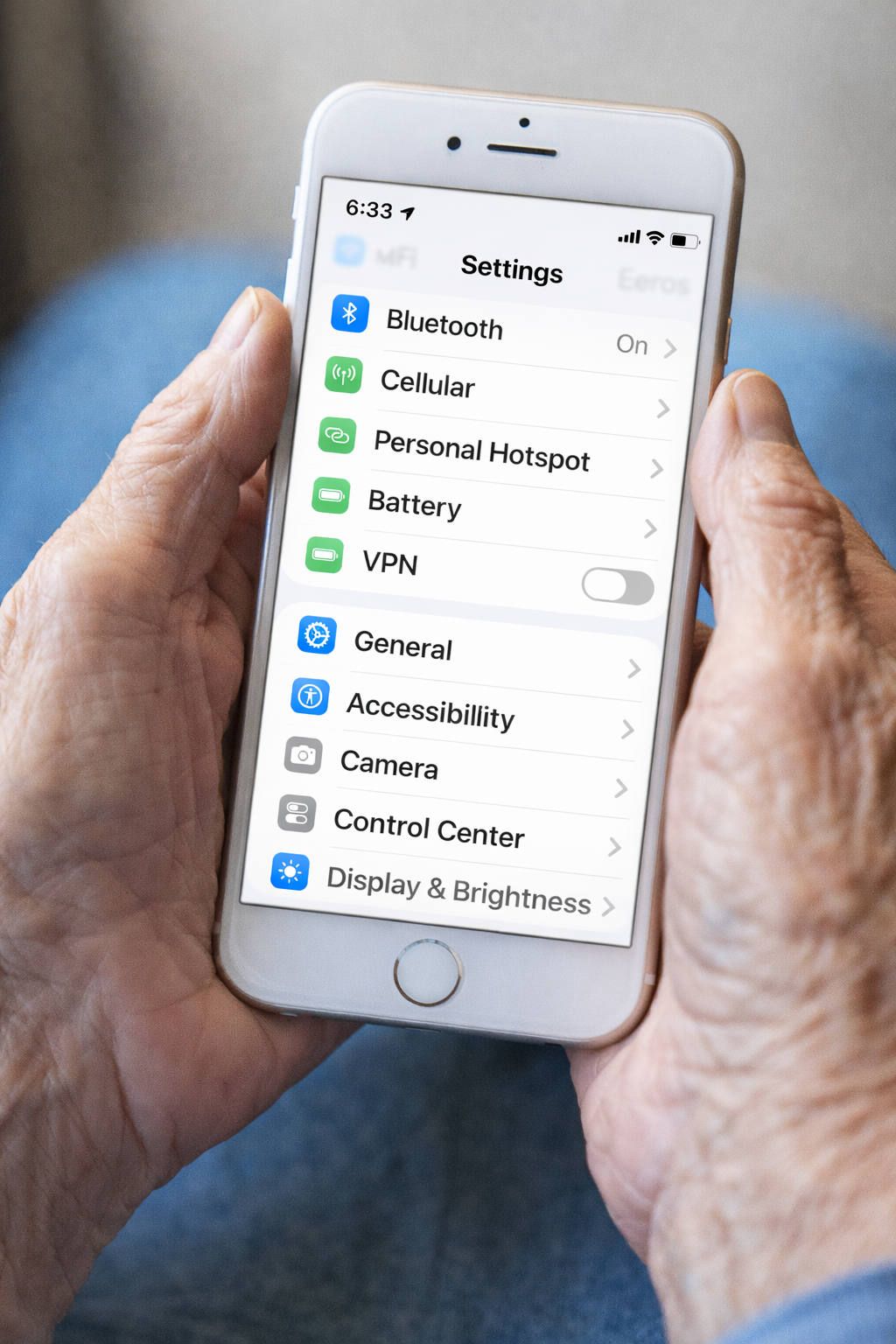
What “Step-by-Step Help” Actually Means (And Why It Matters With an iPhone)
Most iPhone help moves too fast and skips steps.
Step-by-step help means moving one screen at a time, changing only what matters, and stopping when something already works.
Many people say they want help with their iPhone but what they usually mean is something more specific.
They don’t want more features. They don’t want faster explanations. They don’t want to feel rushed or talked down to. They want help that moves at a human pace.
That’s where step-by-step help matters.
Why most iPhone help feels overwhelming
If you’ve ever searched for help online, you’ve probably experienced this:
A video jumps ahead too fast.
Instructions assume you already know where things are.
A helper taps through screens without explaining why.
You’re told, “Just click here,” without time to follow along or any explanation of where “here” is
Even when the information is technically correct, the experience can feel stressful. Not because you can’t understand it, but because it moves too quickly.
Step-by-step means one decision at a time
True step-by-step help does not mean learning everything.
It means:
One screen at a time
One setting at a time
One decision at a time
Nothing is skipped. Nothing is rushed. Nothing assumes prior knowledge.
You are given time to look, read, and confirm before moving on.
That’s how confidence is built.
Why slowing down actually makes things easier
When instructions move too fast, people hesitate. When people hesitate, they stop exploring.
That’s when phones start to feel fragile and unpredictable. That’s when the overwhelm sets in.
Slowing down removes that fear.
When you understand:
what you’re changing
why you’re changing it
and how to undo it if needed
then the phone starts to feel safe again.
Safety leads to confidence. Confidence leads to comfort.
Step-by-step help respects what’s already working
Another key part of step-by-step help is knowing what not to change.
You do not need to adjust every setting. You do not need to learn every feature. You do not need to “keep up” with technology.
Good help focuses only on the parts of your phone that affect your daily life.
Everything else can stay exactly as it is.
This is how iPhone Made Easy approaches help
At iPhone Made Easy, step-by-step means:
Clear instructions
Plain language
No pressure
No judgment
No rushing
You move forward only when you feel ready. The goal is not mastery. The goal is comfort and comfort comes from clarity, not speed.
An easier, more predictable way to use your phone
If your iPhone has ever felt stressful, confusing, or unpredictable, the problem isn’t your ability. It’s the pace of the help you’ve been given.
Slowing things down, and taking things one step at a time, changes everything.

You’re Not Bad With Technology. Your iPhone Just Wasn’t Set Up for You.
Many people assume that if a phone feels frustrating, it must mean they are “not good with technology.” That belief is common, but it is not accurate.
Most iPhones are never adjusted for the person using them. They arrive set up to do as much as possible, for as many people as possible. Over time, that creates noise, clutter, and uncertainty.
None of that reflects your ability.
If using your iPhone sometimes makes you feel slow, cautious, or unsure, this is important to hear:
There is nothing wrong with you.
Many people assume that if a phone feels frustrating, it must mean they are “not good with technology.” That belief is common, but it is not accurate. Most iPhones are never adjusted for the person using them. They arrive set up to do as much as possible, for as many people as possible. Over time, that creates noise, clutter, and uncertainty. None of that reflects your ability.
Why iPhones Feel Harder Over Time (Even If You Use Them Every Day)
For many people, frustration does not start on day one. It builds slowly.
A new app gets added.
A setting changes during an update.
Notifications increase.
Screens look a little different than before.
Each change is small on its own, but together they can make the phone feel unpredictable.
When something feels unpredictable, people naturally become more careful. They hesitate before tapping. They avoid exploring. They worry about doing something they cannot undo.
One thing that’s easy to forget is just how many important things your phone has replaced.
Your iPhone is not just a phone.
It’s your calculator.
Your calendar.
Your notepad.
Your camera and video camera.
Your photo albums.
Your address book.
Your reminders.
For many people, it also holds years of memories, family photos, messages from loved ones, and information they rely on every day so when someone feels cautious using their phone, that makes sense.
Being careful does not mean you are “bad with technology.” It means you understand that what’s on your phone matters. That hesitation before tapping something is not a weakness. It’s a sign that you care about protecting what’s important to you.
The problem isn’t that you’re too careful. The problem is that most phones are never adjusted to feel safe, predictable, and comfortable to use. When a phone feels unpredictable, people naturally pull back. When it feels familiar and steady, confidence comes back.
That’s why small changes that reduce clutter and surprises often make a bigger difference than learning new features.
You Are Allowed to Use Only Part of Your Phone
One of the most helpful mindset shifts is this:
You do not need to use everything your iPhone can do.
You are allowed to:
Ignore features you do not need
Leave settings alone once they work for you
Keep your phone simple on purpose
Use it only for the things that matter in your life
There is no prize for using more features. The goal is not to keep up with technology. The goal is to feel comfortable and confident using your phone for everyday life.
Predictable Is Better Than Powerful
Many people assume that a “better” phone is one that can do more. In reality, a better phone is one that behaves in a way you expect.
Predictable phones:
Interrupt you less
Feel easier to navigate
Reduce second-guessing
Create confidence through familiarity
Small adjustments that reduce surprises often make a bigger difference than learning new features.
It’s Okay to Leave Things Alone
One of the most overlooked truths about technology is this: If something is working, you do not have to change it.
You do not need to explore every menu.
You do not need to respond to every prompt.
You do not need to adjust settings just because they exist.
Comfort grows when you trust what already works.
You’re Not Behind
Technology moves quickly. People do not. And that is okay.
If your phone feels harder to use than it used to, it does not mean you are falling behind. It means your phone has changed faster than your needs.
The solution is not catching up. The solution is adjusting the phone to fit you.
A Final Thought
Using your iPhone should not feel like a test.
It should feel familiar. It should feel manageable. It should support your life, not demand your attention.
If your phone feels overwhelming right now, that is not a personal failure. It is simply a sign that a few thoughtful changes could make a real difference.
And you are allowed to take those changes slowly, one at a time.

How to Make an iPhone Simpler and Easier to Use
Your iPhone does not have to feel overwhelming. A few simple changes can make it easier to use, quieter, and more comfortable for everyday tasks.
Many seniors use an iPhone every day, but still feel like it is doing too much.
Too many icons.
Too many notifications.
Too many settings that are easy to tap by accident.
The good news is that your iPhone can be simplified. You do not need a new phone, special apps, or technical skills. A few small changes can make your iPhone feel simpler, clearer, and much easier to use.
This article walks through simple ways to reduce clutter and make everyday use more comfortable.
Why iPhones Can Feel Overwhelming
iPhones are designed to do a lot. That is great when you need those features, but frustrating when you do not.
Common complaints we hear include:
Icons moving or disappearing
Notifications popping up constantly
Text feeling too small
Too many menus and options
None of this means you are using the phone wrong. It just means the phone has not been adjusted for how you actually use it.
Simple Ways to Make an iPhone Easier to Use
1. Reduce the Number of Icons on the Home Screen
You do not need every app visible.
Keeping only the apps you use most often makes the phone feel cleaner and easier to navigate. Extra apps can be moved to another screen or placed in a folder so they are out of the way but still available if needed.
Fewer icons means fewer accidental taps.
2. Increase Text Size and Button Clarity
Small text and thin fonts make everything harder to read.
Your iPhone allows you to:
Increase text size
Make text bolder
Improve contrast
These changes do not affect how the phone works, only how easy it is to see.
3. Turn Off Unnecessary Notifications
Constant alerts create stress and confusion.
Many apps send notifications even when they are not important. These can be turned off so your phone only alerts you for things that truly matter, like calls, messages, or reminders.
A quieter phone is easier to trust.
4. Use Assistive Features Designed for Seniors
Most people do not realize that iPhones include accessibility features designed to make the phone simpler and safer.
These features can:
Reduce complex gestures
Make buttons easier to tap
Limit confusing options
You can turn these on gradually and only use what feels helpful.
5. Keep Settings Simple and Familiar
You do not need to explore every menu.
Once your phone is set up in a way that works for you, it is okay to leave the rest alone. Familiar settings help build confidence and reduce the fear of doing something wrong.
You Do Not Have to Learn Everything at Once
The goal is not to master the iPhone.
The goal is to feel comfortable using it for the things you care about, staying in touch, getting important calls, and handling daily tasks without stress.
Small changes add up quickly.
Helpful Next Step
If scam calls are one of the things making your phone feel stressful, we have a free Quick Reference Guide to Scam Calls that explains:
What scam calls look like
What to ignore
What never to respond to
You can get your copy by clicking here.
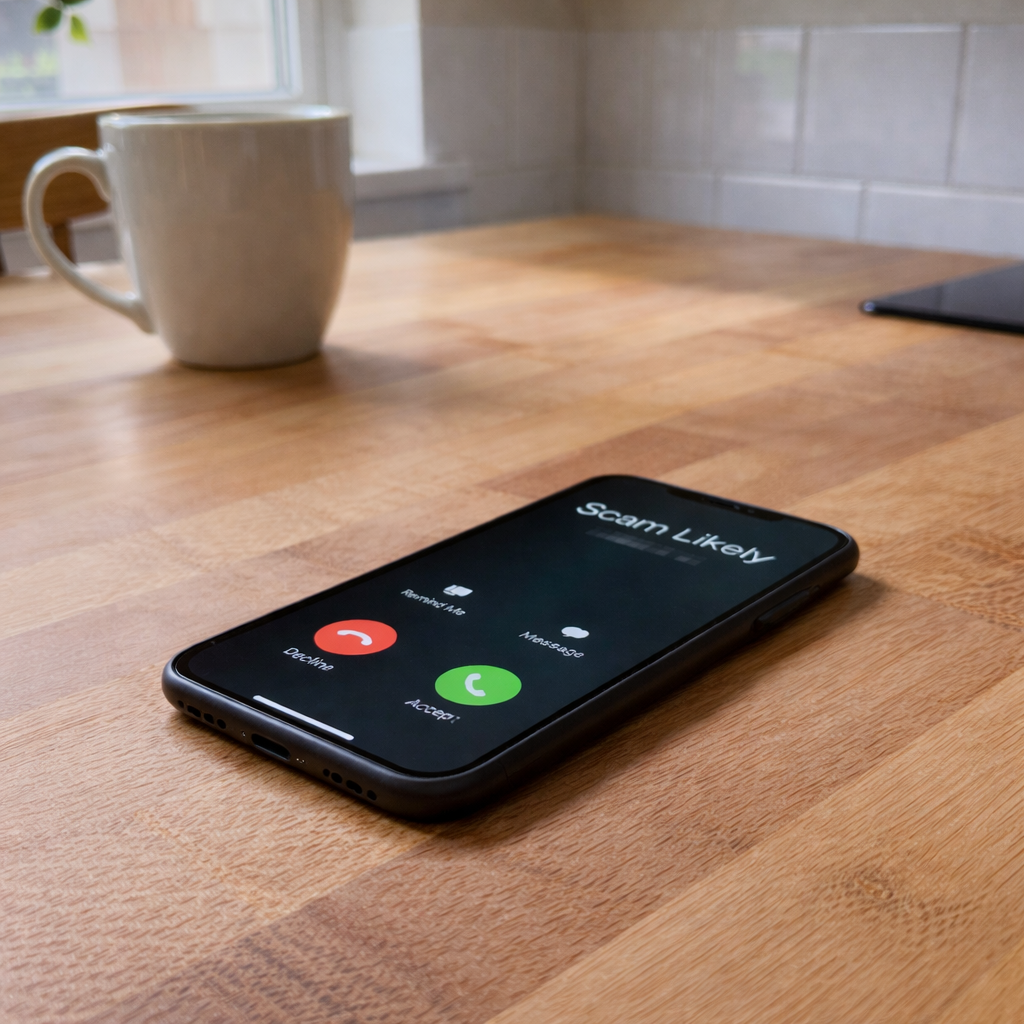
What “Scam Likely” Really Means on an iPhone (And What to Do When You See It)
Scam calls are designed to create fear and urgency.
Even when a phone labels a call as suspicious, the situation can still feel overwhelming, especially for older adults who didn’t grow up with smartphones.
Scammers rely on people reacting quickly instead of thinking clearly. That emotional pressure is what causes the most harm.
Slowing things down is one of the most effective protections
If you or someone you love has ever seen “Scam Likely” show up on an iPhone screen, it can be unsettling.
Many people worry their phone has been hacked, infected, or compromised in some way. Others feel pressured to answer the call just to find out what’s going on.
The truth is much calmer than that.
What “Scam Likely” Actually Means
When an iPhone displays “Scam Likely,” it’s not a warning from Apple and it doesn’t mean there’s anything wrong with the phone.
That label comes from your mobile carrier, not the iPhone itself.
Depending on your carrier, you may see a slightly different label, such as “Spam Risk,” “Suspected Spam,” or “Potential Scam.” These labels all serve the same purpose: to warn you that the call may not be legitimate.
Carriers use reporting data and call patterns to flag numbers that are frequently associated with spam or scam activity. When a number matches those patterns, it may show up with one of these warnings.
It’s essentially a heads-up, not an emergency.
Is Your iPhone Infected or Hacked?
No.
Seeing “Scam Likely” does not mean:
Your phone has a virus
Someone has access to your personal information
Your Apple ID is compromised
It simply means the call itself is suspicious, not your device.
Why These Calls Feel So Stressful
Scam calls are designed to create fear and urgency.
Even when a phone labels a call as suspicious, the situation can still feel overwhelming, especially for older adults who didn’t grow up with smartphones.
Scammers rely on people reacting quickly instead of thinking clearly. That emotional pressure is what causes the most harm.
Slowing things down is one of the most effective protections.
What to Do When You See a “Scam Likely” Call
Here’s the safest approach:
1. Don’t answer the call
Let it go to voicemail. Legitimate callers will leave a message.
2. Don’t call back right away
If the call claims to be from a bank, government agency, or business, never use the phone number shown on the screen.
Instead, call back using a verified number, such as the one on the back of your debit card or from the official website.
3. Avoid engaging at all
Even answering and hanging up can signal that your number is active, which can lead to more scam calls.
How to Reduce Scam Calls on an iPhone
Many people don’t realize that iPhones already include built-in tools to reduce spam and scam calls.
Simple settings like:
Silencing unknown callers
Using call filtering provided by your carrier
Letting voicemail act as a safety buffer
can significantly reduce how often scam calls interrupt your day.
These steps don’t require downloading new apps or installing anything complicated — just a few adjustments in your phone settings.
Why Prevention Matters More Than Reaction
The biggest risk with scam calls isn’t the call itself.
It’s what happens when someone feels rushed, scared, or pressured to act.
By reducing how often scam calls reach you in the first place, you remove the need to make decisions under stress — and that’s where real protection begins.
A Calm Way Forward
Scam calls are unfortunately common, but they don’t have to control your phone or your peace of mind.
Understanding what “Scam Likely” means, and knowing how to handle it, puts you back in control.
Awareness, combined with a few simple protections, goes a long way.
A Simple Place to Start
If you want a calm, step-by-step place to begin, I created a free iPhone checklist that walks through the first protections you can set up right away.